
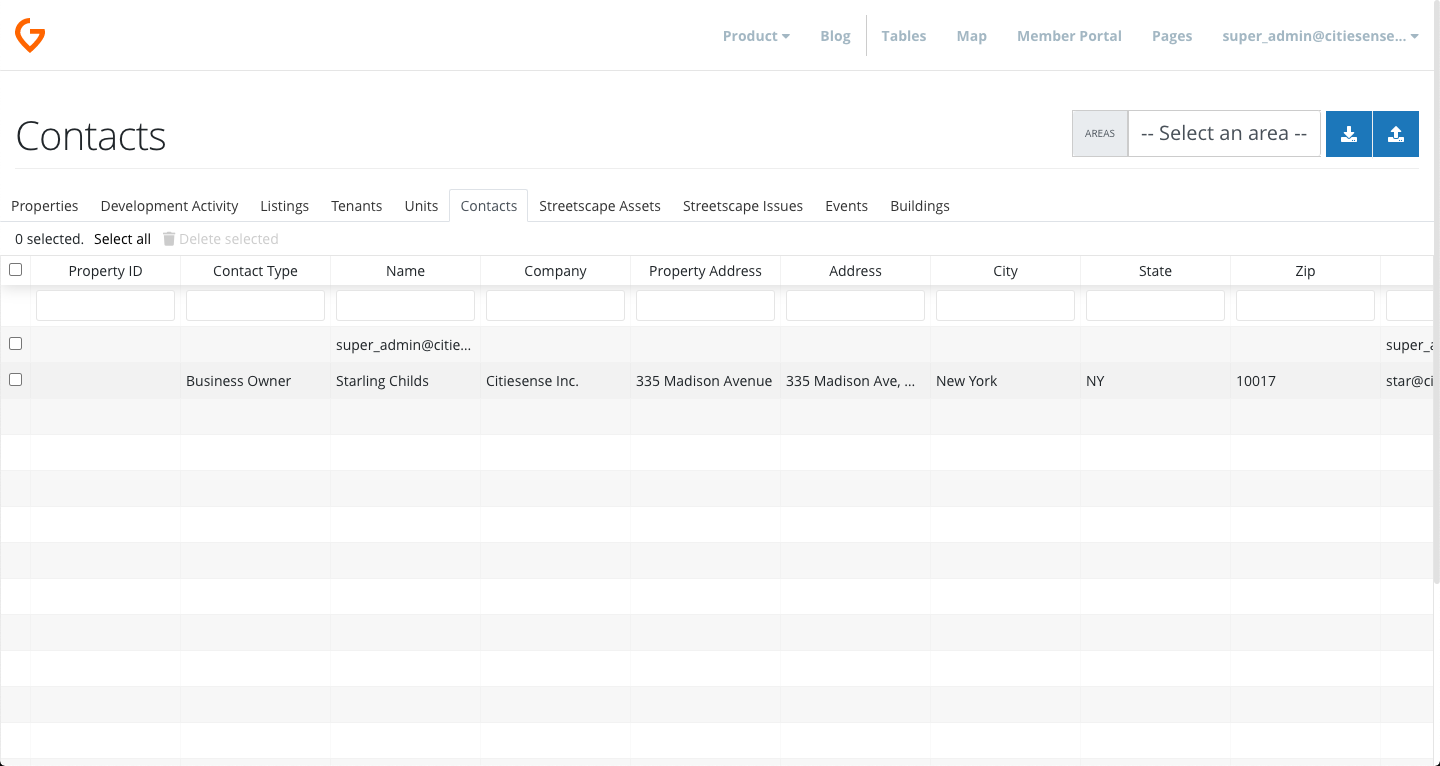
To get started with launching your community's Member Portal we will be importing Contact records for all the community members you'd like to invite to the portal when it launches.
We'll eventually import your Contacts into your account using the import feature available in your Tables here: https://app.ginkgo.city/tables/contacts
But before we do that, let's follow the steps below to organize your Contacts for your account.
Use this Google Sheet to organize the Contacts that will be imported into Ginkgo and invited to the Portal.
How to import and manage Contacts as part of the Organizations they work for.
The dataset or spreadsheet for your Contacts should include a field called organization_name
This is important because it will automatically create a record for each organization and assocaite all contacts within the correct organizations.
For example, if you have an Organization called Shinola Shoe Shine in your community, all of the Contacts that work for this organization will include "Shinola Shoe Shine" under the organization_name field. That way you can invite them all to your Member Portal by sending them a link as part of the Shinola Shoe Shine member account.
Using the contact_type field to organize your Community Members
You can decide how your team would like to organize your community members by "Contact Types" you use to identify different community members and their roles. Here are some suggestions:
- Storefront Business Owner
- Office Business Owner
- Property Owner / Manager
- Resident
Comments
0 comments
Please sign in to leave a comment.